
 No products in the cart.
VStarcam Camera Troubleshooting Guide Pakistan
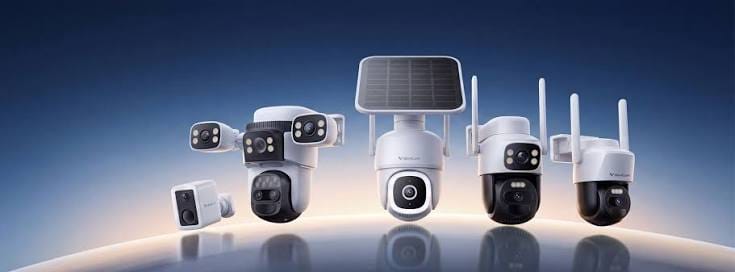
Having trouble with your VStarcam security camera?
This VStarcam Camera Troubleshooting Guide provides practical solutions for common problems including cameras showing offline, WiFi connection issues, failed device setup, forgotten passwords, missing notifications, recording problems, SD card errors, poor video quality, night vision issues, and cameras that keep disconnecting.
Whether you are using a VStarcam WiFi CCTV camera, outdoor security camera, 4G camera, battery-powered camera, PTZ camera, or multi-lens camera, start with the troubleshooting steps below before contacting technical support.
Important: VStarcam camera features, apps, reset procedures and settings vary by model. Always check your specific camera’s manual and product support information before changing advanced settings or performing a factory reset.
Quick VStarcam Troubleshooting Checklist
If your VStarcam camera is not working correctly, try these basic steps first:
- Check that the camera has power.
- Restart the camera.
- Restart your WiFi router if you are using a WiFi camera.
- Check your internet connection.
- Check the camera’s network signal.
- Make sure your smartphone has an internet connection.
- Confirm that you are using the correct VStarcam app for your model.
- Check whether the camera appears online in the app.
- Check for firmware or app updates where applicable.
- If the problem continues, check the model-specific troubleshooting instructions.
- Perform a factory reset only when necessary.
- Contact VStarcam Pakistan support if the issue cannot be resolved.
1. VStarcam Camera Is Offline
One of the most common VStarcam problems is a camera appearing Offline in the mobile app.
According to VStarcam’s official support documentation, an offline camera can be caused by an unstable wireless connection, a changed router, or a changed WiFi password. VStarcam recommends checking the network connection, connecting the camera to the router by network cable where supported, or restoring the camera to factory settings and configuring it again.
Try these steps:
- Check whether the camera is powered on.
- Check your internet connection.
- Restart the camera.
- Restart your router.
- Check the WiFi signal where the camera is installed.
- Confirm that the WiFi password has not changed.
- Check whether the router has been replaced.
- Move the camera closer to the router during testing.
- If supported, temporarily connect the camera to the router using an Ethernet cable.
- Reconfigure the camera if the network settings have changed.
If the camera still shows offline, a factory reset and fresh setup may be required.
2. VStarcam Camera Keeps Disconnecting
If your camera repeatedly goes offline and comes back online, the problem may be related to the network connection.
VStarcam specifically recommends ensuring that the camera receives a stable WiFi signal and restarting both the camera and router. One VStarcam support page recommends having a strong WiFi signal at the installation location.
Possible causes
- Weak WiFi signal
- Camera installed too far from the router
- Thick walls or physical obstructions
- Router instability
- Internet connection problems
- Changed WiFi password
- Network congestion
- Power interruptions
- Incorrect network configuration
Recommended solution
Move the camera temporarily closer to the router and monitor whether the connection becomes stable.
If the camera works normally near the router but disconnects at its original location, the problem is likely related to wireless signal strength.
3. VStarcam Camera Will Not Connect to WiFi
If your camera cannot connect to WiFi:
Check the following:
- Confirm your phone is connected to the intended WiFi network.
- Verify the WiFi password.
- Make sure the camera supports the WiFi network/band being used.
- Keep the camera near the router during initial configuration.
- Restart the camera and router.
- Try the setup process again.
- Reset the camera if it was previously configured with another network.
Some older VStarcam documentation specifies that certain models do not support mobile hotspots or public WiFi networks, so compatibility should always be checked against your particular model’s manual.
4. Camera Setup Failed
If you cannot add the camera to the VStarcam app:
- Confirm that the camera is powered on.
- Make sure your phone has internet access.
- Open the correct VStarcam application.
- Select Add Device.
- Scan the device QR code or enter the required device information.
- Follow the setup instructions displayed in the app.
For some VStarcam models, the device UID and password can be found on the camera label. VStarcam’s product support instructions describe adding cameras by scanning the QR code or manually entering the device information.
If setup still fails
Try resetting the camera and starting the setup process again.
5. QR Code Will Not Scan
If the camera cannot scan the QR code displayed on your phone:
Try these solutions:
- Increase your phone’s screen brightness.
- Clean the camera lens.
- Hold the phone at the recommended distance from the camera.
- Try scanning from different angles.
- Make sure the QR code is displayed clearly.
- Restart the setup process.
- Try another supported configuration method if available.
For one of its current 4G/low-power camera support pages, VStarcam recommends keeping the QR code approximately 15–20 cm from the camera lens and trying different angles. It also recommends checking the camera lens and contacting support if the device does not respond during network configuration.
6. I Changed My WiFi Password and the Camera Went Offline
If you recently changed your:
- WiFi password
- WiFi router
- Network name (SSID)
- Internet service
the camera may lose its connection.
The camera normally needs to be configured again with the new network information.
What to do
- Check the new WiFi credentials.
- Restart the camera.
- Open the VStarcam app.
- Check whether the camera can be reconfigured.
- If necessary, reset the camera.
- Add the camera again using the new network details.
7. VStarcam Camera Has No Power
If the camera does not turn on:
Check:
- Power adapter
- Power cable
- Electrical outlet
- Power switch, if available
- Battery level for battery-powered cameras
- Solar/battery system for supported solar models
- SIM/network status for 4G models
Try another suitable power outlet.
For battery-powered models, charge the camera according to the instructions for that particular model.
Do not use an incompatible power adapter.
8. VStarcam Camera Forgot Password
There are two different passwords you may need to recover:
Camera password
Some VStarcam models can be restored to factory settings if the camera password has been forgotten.
VStarcam’s legacy support documentation explains that supported cameras can be reset using the reset button or reset hole. However, reset procedures and default credentials vary by model, so do not assume that an old default password applies to your camera.
App account password
If you have forgotten the password for your VStarcam app account, use the app’s Forgot Password function where available and follow the account recovery instructions.
If you cannot recover the account, contact support.
9. How to Reset a VStarcam Camera
A factory reset can be useful when:
- The camera is connected to an old WiFi network.
- You cannot configure the camera.
- The camera remains offline.
- You have forgotten the camera password.
- You want to configure the camera again.
General reset procedure
The reset location differs between models.
Depending on the camera, the reset control may be:
- On the back of an indoor camera
- Under or near the camera head
- On the cable of an outdoor camera
- Inside a reset hole
- Near the network/power connections
VStarcam support documentation gives different reset procedures for different product families. For example, one current support page instructs users to hold the reset button for approximately five seconds, while older models may use a longer reset period.
Always follow the reset procedure for your exact model.
Warning: Factory resetting a camera can remove its existing network/configuration settings. You will normally need to configure the camera again afterward.
10. VStarcam Camera Is Not Sending Notifications
If motion or human-detection alerts are not reaching your phone, check:
Camera settings
- Motion detection is enabled.
- Human detection is enabled, if supported.
- Alarm/notification settings are enabled.
- The detection area is configured correctly.
- Detection sensitivity is appropriate.
Smartphone settings
- Notifications are enabled for the VStarcam app.
- The phone has an internet connection.
- Battery-saving settings are not preventing the app from running.
- Security or antivirus software is not blocking notifications.
VStarcam’s official FAQ recommends checking the phone’s internet connection, ensuring alarm functionality is enabled in the app, allowing the app to run in the foreground/background where required, and ensuring phone notification permissions are enabled.
11. Camera Records but Does Not Send Alerts
Recording and notifications are separate functions.
Your camera may continue recording while notification settings are disabled.
Check:
- Detection settings.
- Alarm settings.
- Notification settings.
- Phone permissions.
- Detection sensitivity.
- Detection zones.
Also make sure the camera model actually supports the detection feature you are trying to use.
12. VStarcam Camera Is Not Recording
If your camera is not recording:
Check the storage settings
- Is a compatible MicroSD/TF card installed?
- Is the card detected?
- Is recording enabled?
- Is the card full?
- Does the camera support the card’s capacity?
- Does the card need formatting?
VStarcam documentation explains that supported cameras can manage SD-card recordings through the app and that the card can be formatted through the camera’s storage settings.
13. VStarcam SD Card Is Not Detected
If your MicroSD/TF card is not detected:
- Turn off the camera if the manual requires it.
- Remove and reinstall the card correctly.
- Check whether the card is supported by your model.
- Open the app and check storage settings.
- Format the card if the camera offers a format option.
- Test with a suitable, reliable memory card.
Important
Formatting the memory card can permanently delete existing recordings.
Back up important footage before formatting.
14. SD Card Is Full
If your SD card is full, recording behavior depends on the camera’s supported recording settings.
You can manage recordings through the app where supported.
VStarcam documentation describes viewing and deleting TF-card recordings through the app and formatting the card to remove stored files.
Before formatting
Make sure you have downloaded any important recordings you want to keep.
15. How Long Can a Memory Card Record?
Recording time depends on factors including:
- SD card capacity
- Video resolution
- Bitrate
- Frame rate
- Continuous or event-based recording
- Amount of movement in the scene
VStarcam notes that the amount of storage used depends on how dynamic the scene is and therefore there is no single exact recording duration for every situation.
16. VStarcam Camera Picture Is Blurry
If the picture is blurry:
Try:
- Clean the camera lens.
- Remove any protective film from the lens.
- Restart the camera.
- Check the camera focus where applicable.
- Check the lens for physical damage.
- Check whether the issue occurs during both day and night.
VStarcam’s support information recommends rebooting the camera and, where appropriate, restoring factory settings. If the problem repeatedly returns, it may indicate a sensor or hardware issue requiring service.
17. Camera Picture Has Wrong Colors
If the video has unusual colors or a color cast:
- Restart the camera.
- Check the lighting around the camera.
- Clean the lens.
- Check the camera settings.
- Try restoring factory settings if appropriate.
If the problem continues after troubleshooting, the camera may require technical inspection.
18. VStarcam Camera Picture Is Upside Down
If the camera image is inverted, check the video/display settings in the app.
On supported models, VStarcam documentation provides a Vertical Mirror option under the video settings.
The exact menu location can vary between apps and camera models.
19. Night Vision Is Not Working
If night vision is not working properly:
- Check whether the camera has entered night mode.
- Make sure the lens is clean.
- Check whether anything is covering the infrared area.
- Restart the camera.
- Check the night-vision settings in the app.
- Test the camera in a genuinely dark environment.
Some VStarcam models use different night-vision technologies, so available settings depend on the camera.
20. Two-Way Audio Is Not Working
If you cannot hear audio or speak through the camera:
Check:
- Whether the camera supports two-way audio.
- Phone volume.
- Microphone permission for the app.
- Camera speaker volume/settings.
- Internet connection.
- Whether another application is using the phone microphone.
Test the feature from a quiet location.
21. PTZ Camera Is Not Moving
If your VStarcam PTZ camera does not pan or tilt:
- Confirm that the model supports PTZ.
- Check that the camera has power.
- Restart the camera.
- Check the app’s PTZ controls.
- Confirm that the camera is online.
- Check for mechanical obstruction.
Do not force the camera head manually unless the product manual specifically allows it.
22. 4G VStarcam Camera Is Offline
For 4G models, check:
- SIM card installation.
- SIM activation.
- Mobile data availability.
- Network coverage.
- SIM balance/data package.
- APN configuration where applicable.
- Camera power/battery level.
- Supported mobile network bands.
If the 4G signal is weak at the installation location, the camera may repeatedly disconnect.
23. VStarcam Solar/Battery Camera Is Not Working
For low-power or solar-powered models:
- Check battery level.
- Make sure the power switch is turned on.
- Check the solar panel installation.
- Make sure the panel receives sufficient sunlight.
- Check the charging connection.
- Restart the camera.
- Check the mobile network/WiFi connection depending on the model.
VStarcam’s support center separates low-power cameras from conventional indoor/outdoor IP cameras, so troubleshooting should be based on the exact model.
24. Firmware Update Problems
Firmware updates should only be performed using the procedure and firmware intended for your exact camera model.
VStarcam’s older support documentation provides firmware upgrading through the app and notes that if the camera has no problem, upgrading firmware may not always be necessary.
Before updating firmware:
- Confirm the exact model.
- Check the firmware version.
- Ensure the camera has stable power.
- Ensure the network connection is stable.
- Do not disconnect the camera during an update.
Never install firmware intended for another model.
25. App Cannot Find the Camera
If the application cannot find your camera:
- Check camera power.
- Check network connection.
- Confirm the correct app is being used.
- Check the device QR code/UID.
- Restart the app.
- Restart the camera.
- Try adding the device again.
- Reset and reconfigure the camera if necessary.
VStarcam’s support center provides model-specific instructions and resources for adding devices, so the exact procedure should be checked against the camera model.
26. When Should You Factory Reset the Camera?
A factory reset should generally be considered when:
- The WiFi network has changed.
- The camera was previously installed at another location.
- You cannot reconnect the camera.
- The configuration has become corrupted.
- You have forgotten the camera credentials.
- Normal troubleshooting has not solved the problem.
Try simpler troubleshooting first because a reset normally means you will need to configure the camera again.
27. Before Contacting VStarcam Pakistan Support
If troubleshooting does not solve the problem, collect the following information before contacting support:
- Exact camera model
- Camera UID/device ID
- App name and version
- Smartphone model
- Smartphone operating system
- Description of the problem
- When the problem started
- Internet/network type
- Screenshots of error messages
- Short video showing the problem, if possible
- Purchase/order information, if warranty assistance is required
VStarcam’s own support instructions recommend providing information such as the app account, product UID, app version, phone model, problem description, screenshots and/or a short video when reporting technical problems.
VStarcam Official Support Resources
VStarcam maintains a dedicated online support center containing product-specific FAQs, videos, user manuals, datasheets, troubleshooting information and technical resources.
Official VStarcam Support Center
VStarcam FAQ
For model-specific assistance, search for your exact camera model in the VStarcam Support Center rather than relying on a generic troubleshooting procedure.
VStarcam Pakistan Technical Support
If you purchased your VStarcam camera from VStarcam Pakistan, contact our support team for assistance with:
- Camera installation
- WiFi configuration
- 4G camera setup
- App setup
- Camera offline issues
- Network problems
- Recording and SD card issues
- Motion detection
- Notification problems
- General troubleshooting
- Warranty and after-sales support
When contacting support, provide your camera model and a clear description of the problem so our team can identify the appropriate troubleshooting procedure.
Need Help With Your VStarcam Camera?
Before contacting support, try the troubleshooting steps above and check the support information for your specific model.
If the problem remains unresolved, contact VStarcam Pakistan Support for further assistance.